
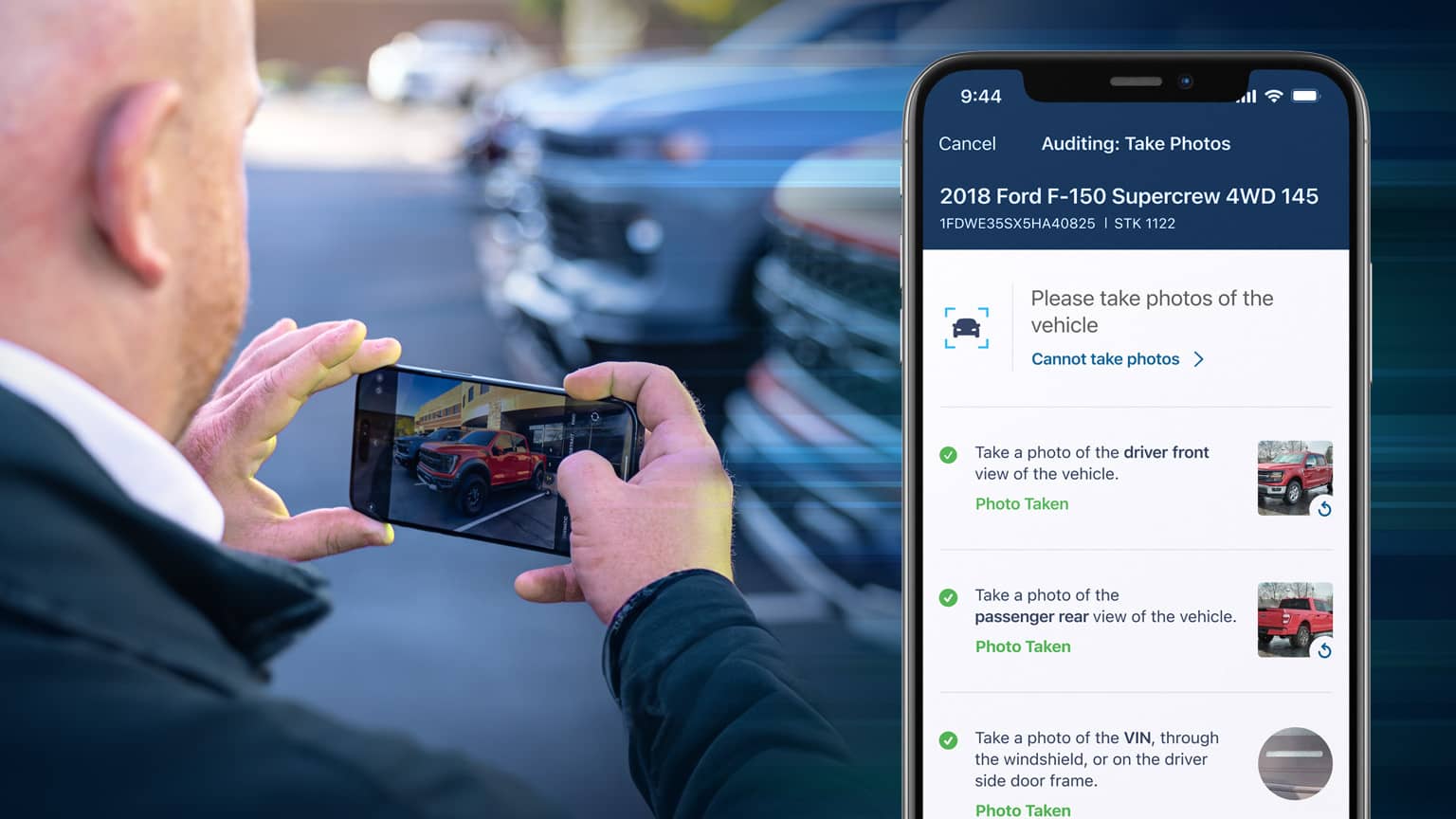
What self‑audits are, how they work, and why they matter for your dealership—plus how to complete the entire process in the NextGear Capital mobile app to save time, reduce disruption to your operations, and stay compliant
Table of Contents
What are self-audits?
Self-audit is NextGear Capital’s mobile audit experience, allowing you to verify your own floored inventory right from your phone! It’s the best way to reduce disruption to your operations, save time, and control certain audit fees.
When assigned a self-audit, you’ll complete the entire process in the NextGear Capital mobile app. Just sign in to the app, take the required vehicle photos, and upload — that’s it! The app marks successfully verified vehicles as completed in real-time, so you can audit fast, stay compliant, and keep your business running.
Receiving Notifications
First, make sure you’re able to receive notifications from the app. Follow the steps below to ensure push notifications are turned on.
iPhone users
- Go to Settings and tap Notifications.
- From the list of apps under Notification Style, select the NextGear Capital app.
- Turn on Allow Notifications, choose the alert style and when you want the notifications delivered.
Android users
- Go to Settings, tap Notifications > App Settings.
- Tap All apps and tap the NextGear Capital app.
- Turn on notifications, choose from the sound and notification types you prefer.
Completing a Self-Audit with the NextGear Capital App
Now, follow the five easy steps below:
- You’ll receive an email and
a push notification from
the mobile app with an open
audit alert, which will begin
the 48-hour window to
complete your audit.
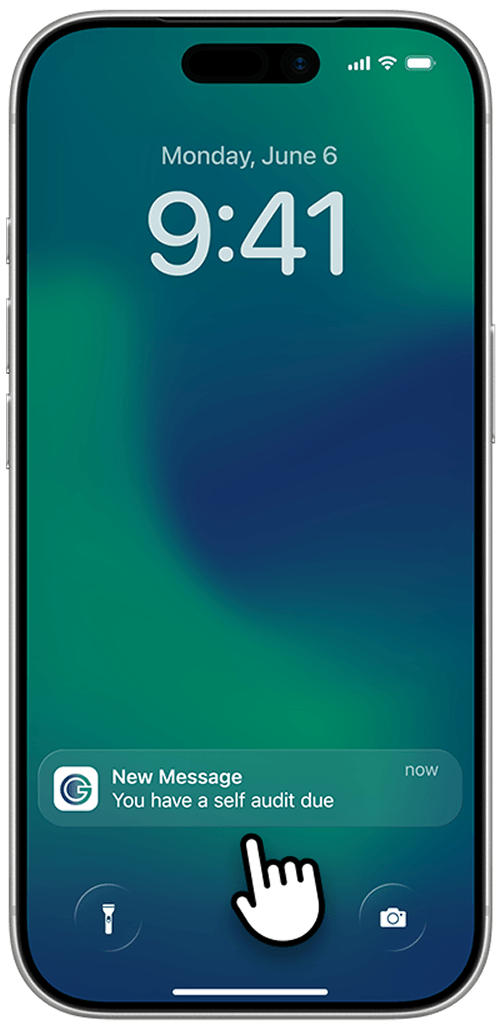
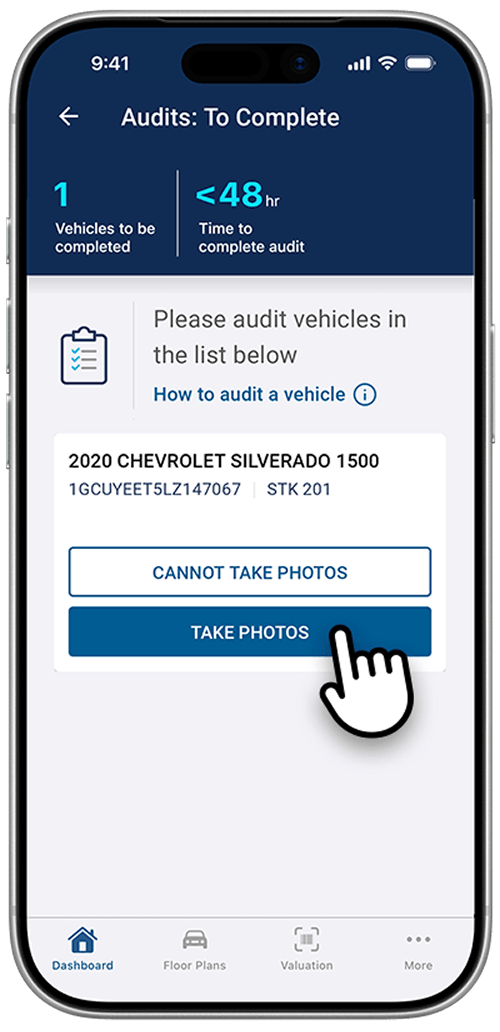
- Tap on the push notification
or log into your NextGear
Capital app to initiate your
self-audit from the Audits to
Complete tile on your
dashboard.
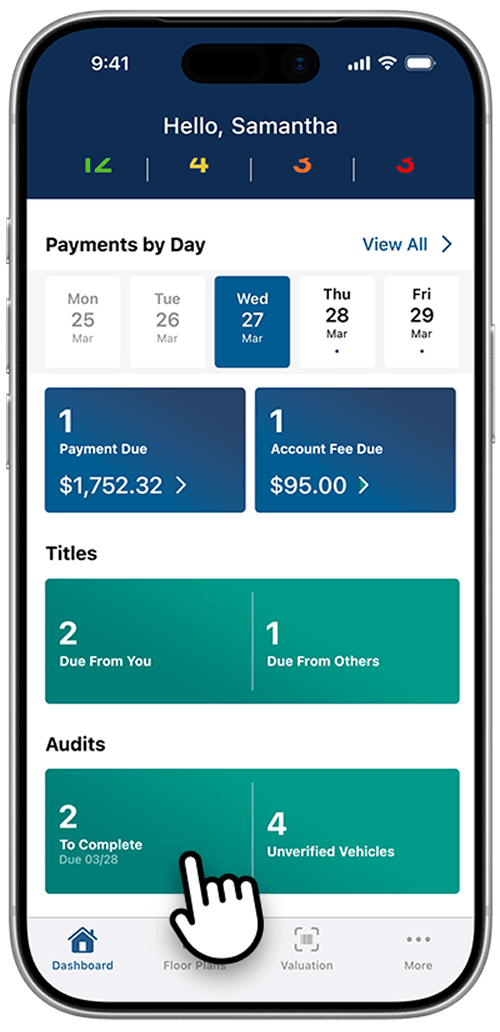
- Select a vehicle from your
inventory list to begin each
audit.
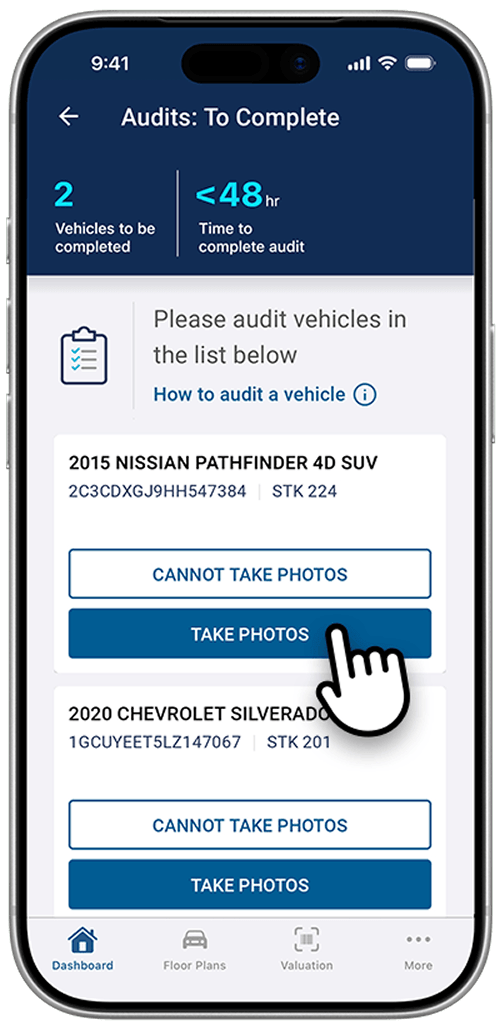
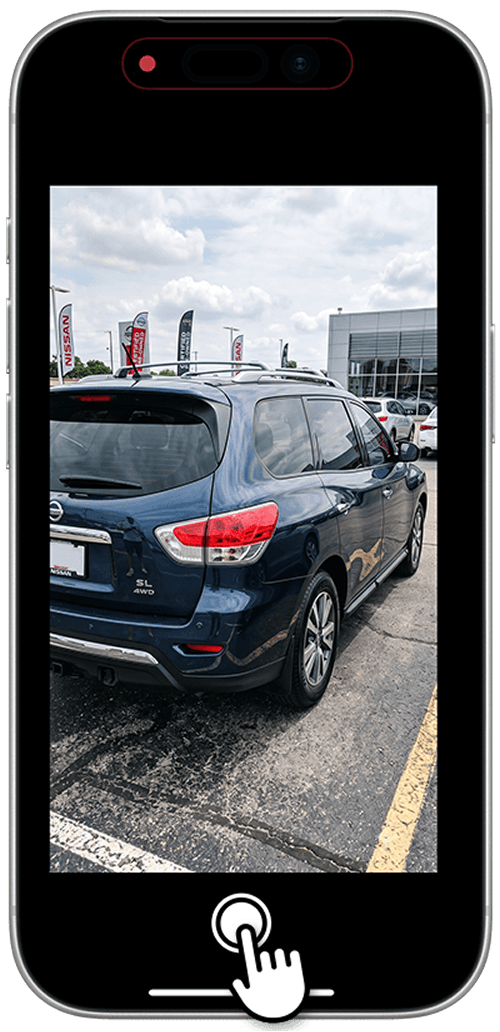
- Follow the prompts to add
required photos.
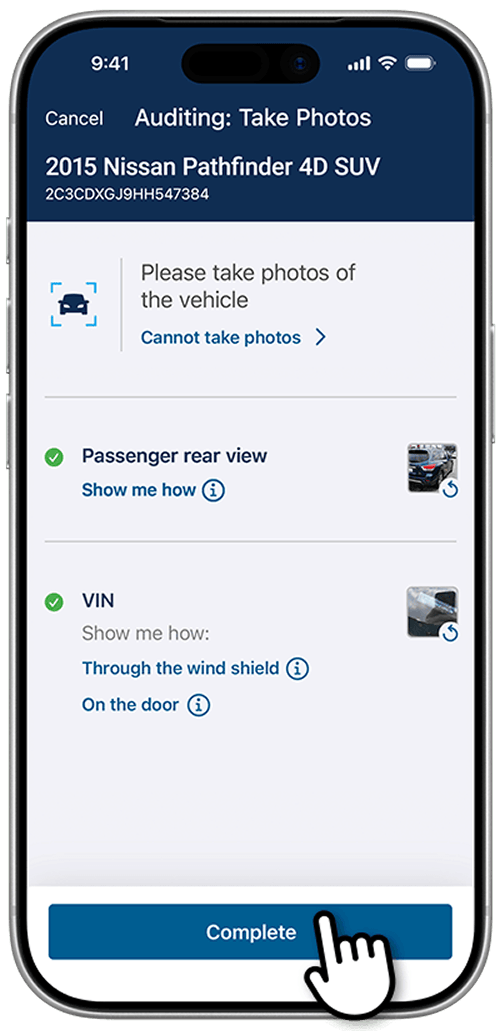
Two photos are required for each vehicle:
- One photo of the
passenger rear view - One photo of the VIN
Once you’ve added both
photos, tap Complete.
- Repeat for all remaining
vehicles on the audit list
until complete.
Want to learn more about self-audits? Access the self-audit overview and self-audit FAQs.
Enabling Self-Audits
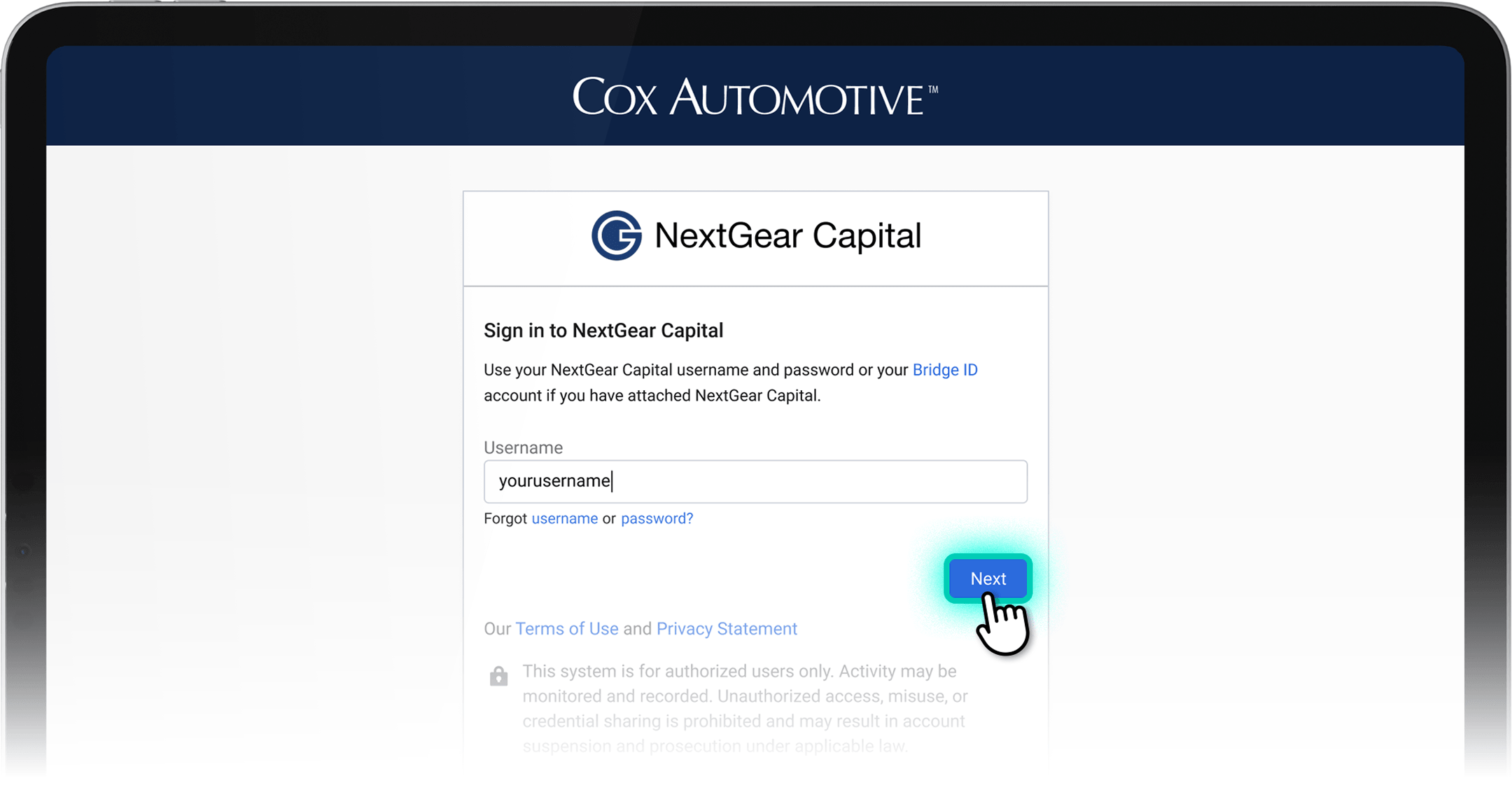
1. Log in to your Account Portal
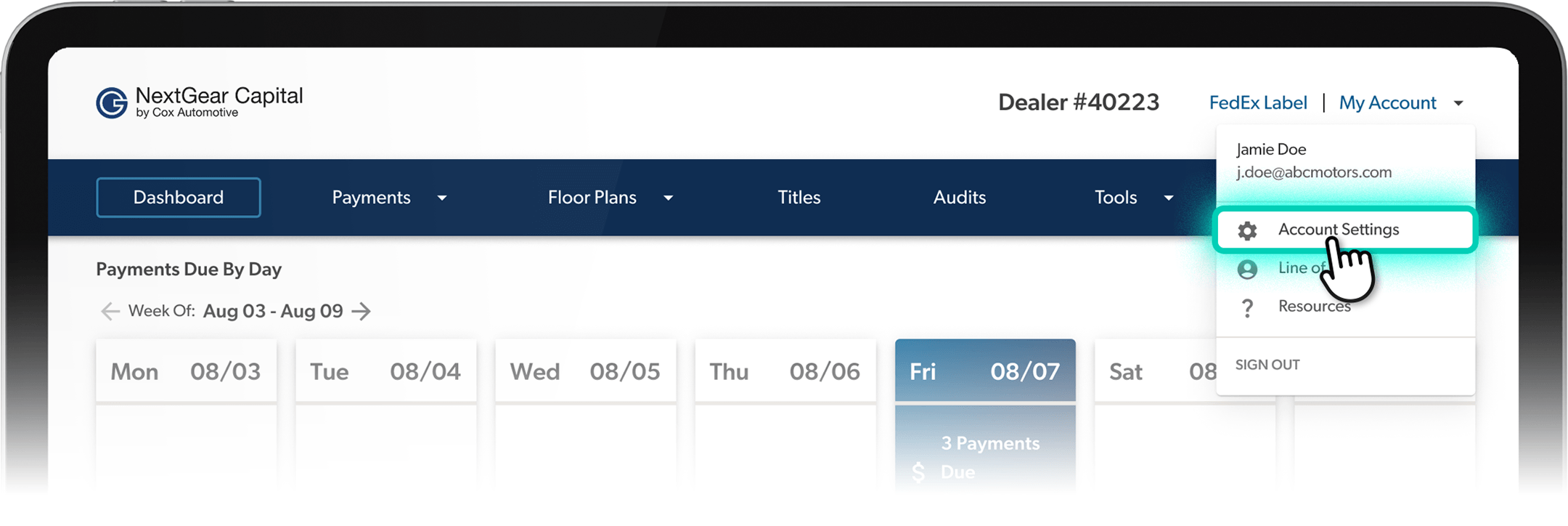
2. Find “My Account” on the top right side of the page and select Account Settings from the dropdown menu.
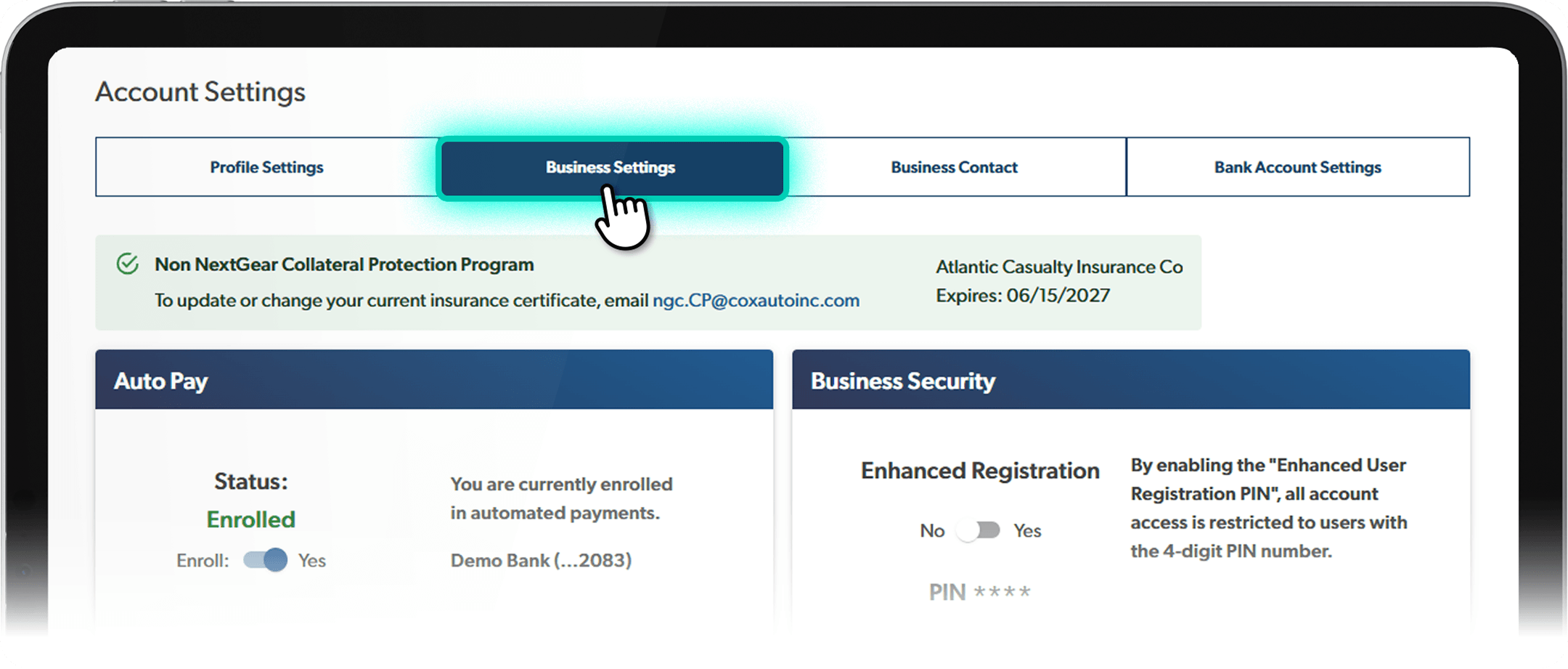
3. Click on the Business Settings tab.
4. Click the Status toggle under Self-Audit to switch from “No” to “Yes” to enable self-audits on your account.*
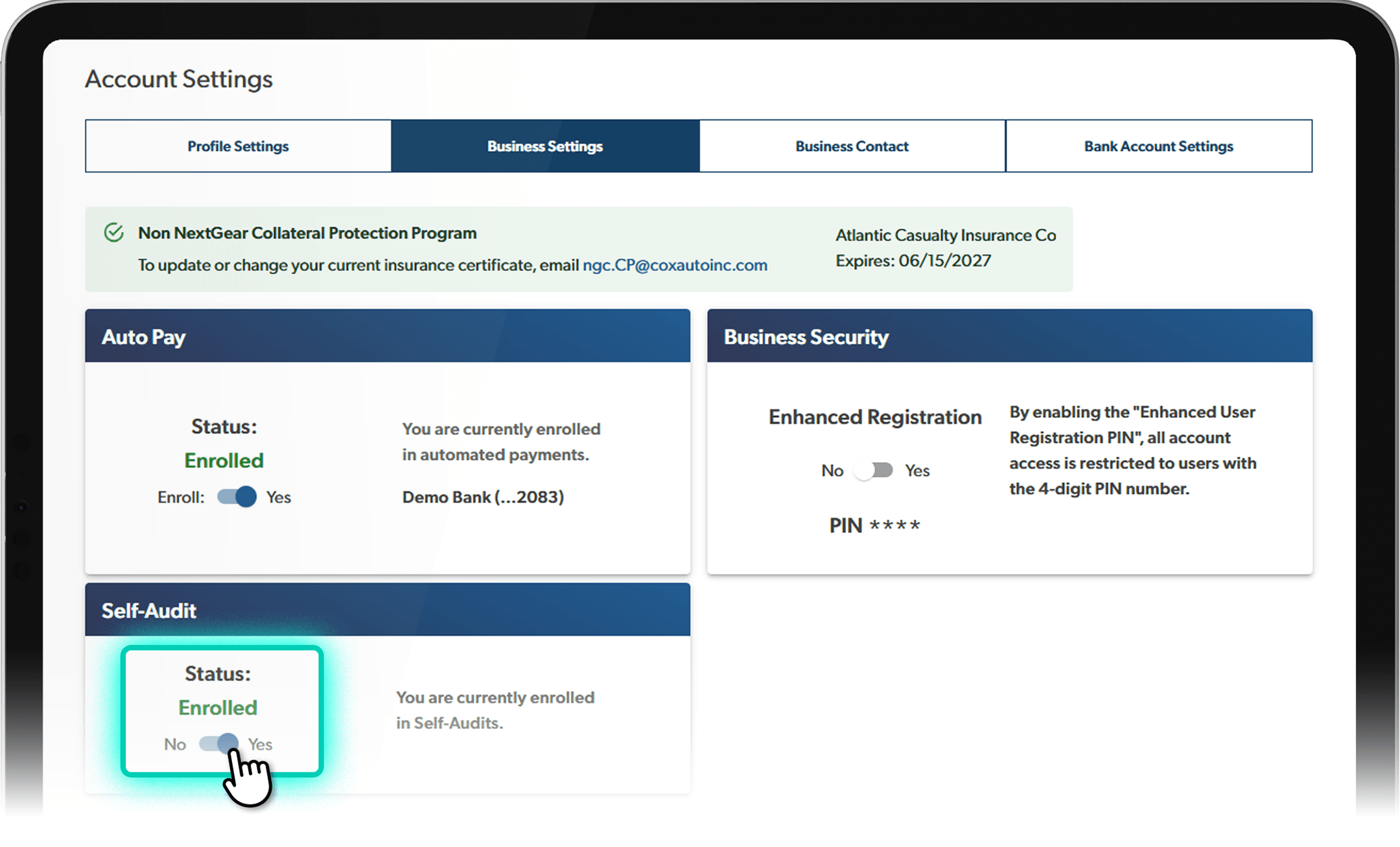
5. That’s it! You’re now eligible to be assigned self-audits.
Enabling self-audits means you are willing to perform a self-audit whenever one is assigned to you and self-audits are enabled. You can switch back to in-person audits any time by disabling self-audits in your NextGear Capital account portal.
To learn more, read How Self-Audit Works.
Self-audit FAQs
No, not when a self-audit is completed successfully. Self-audit allows you to take more control of fees you might incur as part of the current audit process.
Log into the NextGear Capital mobile app, scroll to the Audits tile on your dashboard and tap the tile that shows the number of units To Complete. Select a vehicle from your inventory list to begin an audit. Simply follow the prompts to take/upload the required photos and complete the audit. Repeat the same process for any remaining vehicles on the audit. It’s that simple!
A complete and successful self-audit will satisfy the audit requirement for that audit period. That may mean you won’t see an auditor that month. However, self-audit does not guarantee that you will never see an auditor in-person again.
You will receive a push notification from your NextGear Capital app and an email alerting you of an audit due on your account. You will have 48 hours from the time stamp on the alert sent by NextGear Capital to complete your self-audit. It is your responsibility to enable push notifications from the NextGear Capital app in your device settings and check regularly for updates and notifications.
Yes. If you do not have the app, you can download it free from the Apple App Store or Google Play. If you already have the app downloaded just ensure you are on the latest version and have enabled push notifications.
You will have 48 hours from the time stamp on the push notification and email alerting you of an audit being due, within which to complete the self-audit.
Yes, if you are assigned a self-audit, it is required for you to complete the audit in the 48 hour window. Any vehicles not successfully audited will be marked as unverified and require post-audit unit verification.
You may reach out to your NextGear Capital Representative or our dedicated service team to assist with any questions regarding self-audit. You can reach them at ngc.customerservice@coxautoinc.com.
There is no current process to support the delegation of account management.
If you know you will be out of town for longer than 48 hours, you will need to contact NextGear Capital in advance. If there is an emergency that prevents you from completing the self-audit after it has begun, contact us to request a deferral. Failure to notify your NextGear Capital Representative or our dedicated service team may result in the loss of self-audit privileges.
iPhone Users Push Notifications
- Go to Settings and tap Notifications.
- From the list of apps under Notification Style, select the NextGear Capital app.
- Turn on Allow Notifications, choose the alert style and when you want the notifications delivered.
iPhone Users Location Services Android Users Location Services
- Go to Settings > Privacy & Security > Location Services.
- Use the toggle next to Location Services to turn on.
Android Users Push Notifications
- Go to Settings, tap Notifications > App Settings.
- Tap All apps and tap the NextGear Capital app.
- Turn on notifications, choose from the sound and notification types you prefer.
Android Users Location Services
- Swipe down from the top of the screen twice.
- Tap the Location icon to turn on.
*All rights reserved. Certain conditions apply. All advances are subject to the terms and conditions of your Demand Promissory Note and Loan and Security Agreement and other Loan Documents with NextGear Capital. You are responsible for obtaining the cellular or wireless connection to access the NextGear Capital mobile app, including any data rates charged by your carrier. You are responsible for ensuring you have enabled push notifications for the NextGear Capital mobile app and to check the app regularly for any notifications. If an assigned self-audit is not completed successfully within the designated window, additional steps will be required and fees may be incurred. NextGear Capital reserves the right to modify or terminate this offer, without notice and at any time. For complete details, terms and conditions, please see your local NextGear Capital representative. All advances made in California by NextGear Capital are made pursuant to NextGear Capital’s California Finance Lender License, #603G505.
**The announcement in the account portal and ability to enroll in Self-audits is only available if your account is eligible for Self-audits. Please contact our dedicated Customer Service team or reach out to your Portfolio Manager for more information.